

Installation Guide
Choose your device and follow the picture steps below. After purchase, your login details will be sent to you by email.
Install on Windows or Mac
Install IPTV Smarters Pro, then use the username, password, and server URL we send after your order.
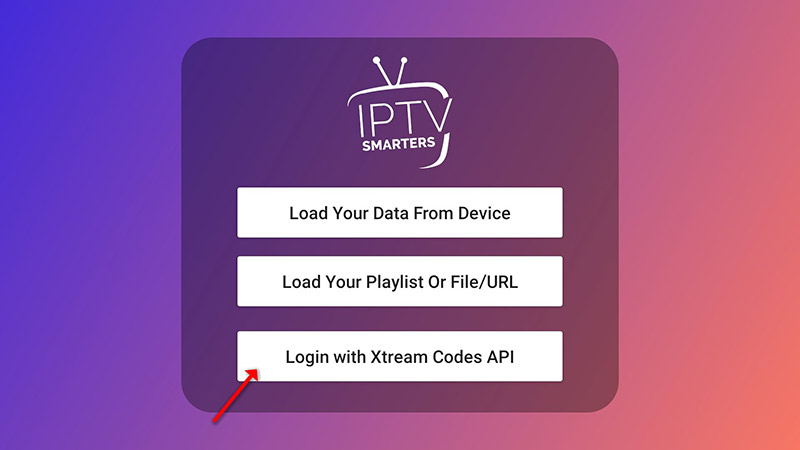
Choose Xtream Codes API
Open IPTV Smarters Pro, click “Add User”, then choose “Login with Xtream Codes API”.
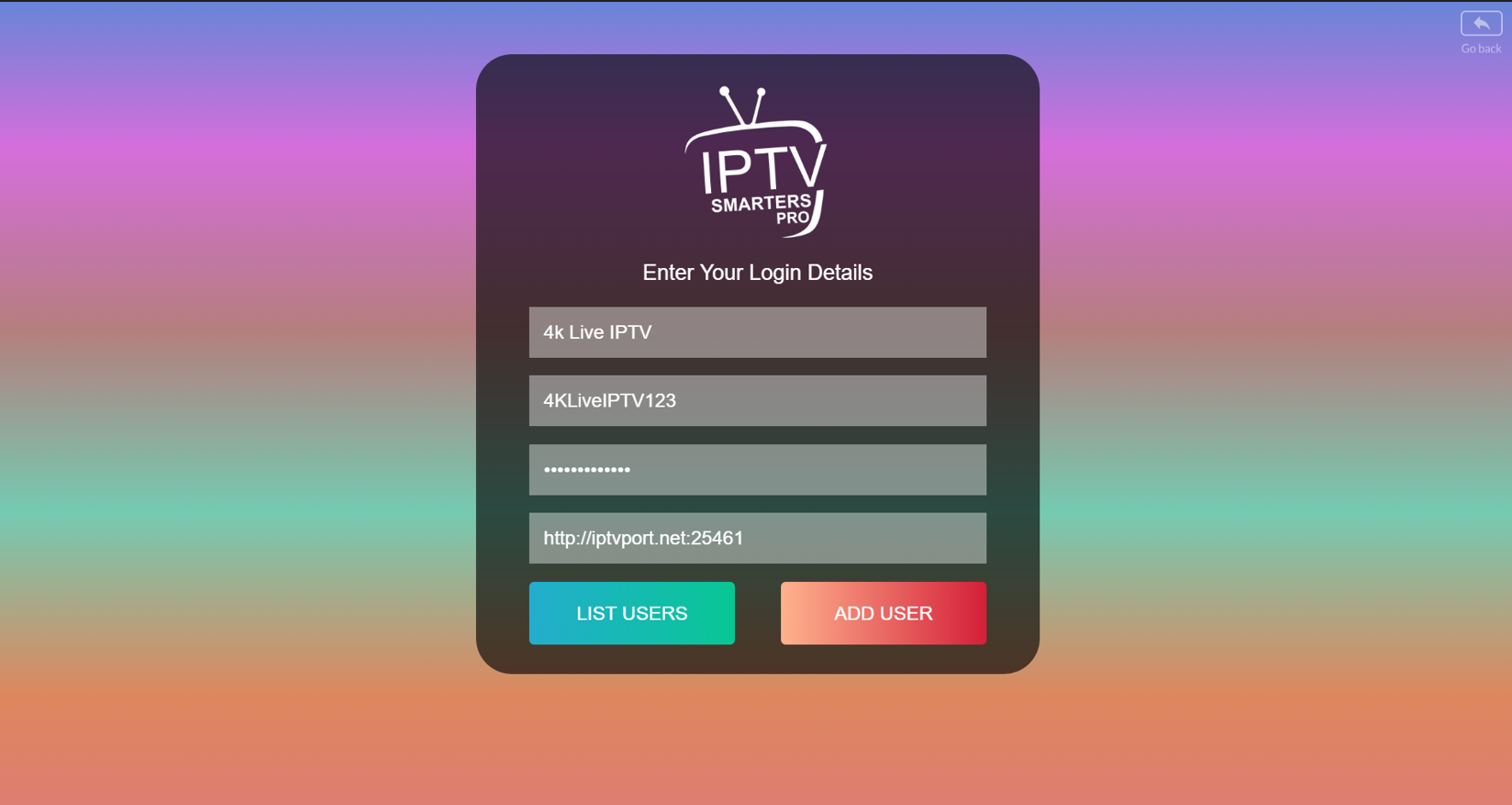
Enter your login details
Enter any profile name, your username, password, and server URL. Then click “Add User”.
Install on Amazon Fire TV Stick
Fire TV Stick requires installing the Downloader app first, then using it to install IPTV Smarters Pro. Follow each step below carefully.
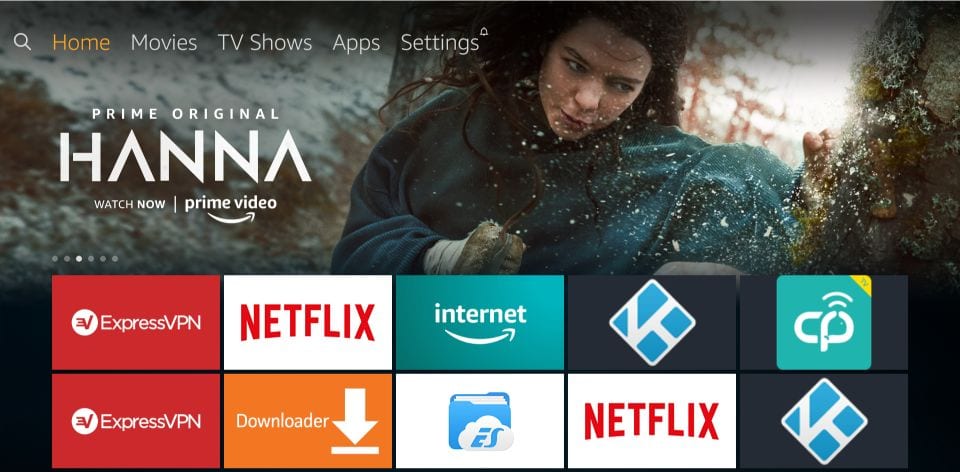
Open Fire TV Settings
From your Fire TV home screen, go to the top menu and select “Settings”.
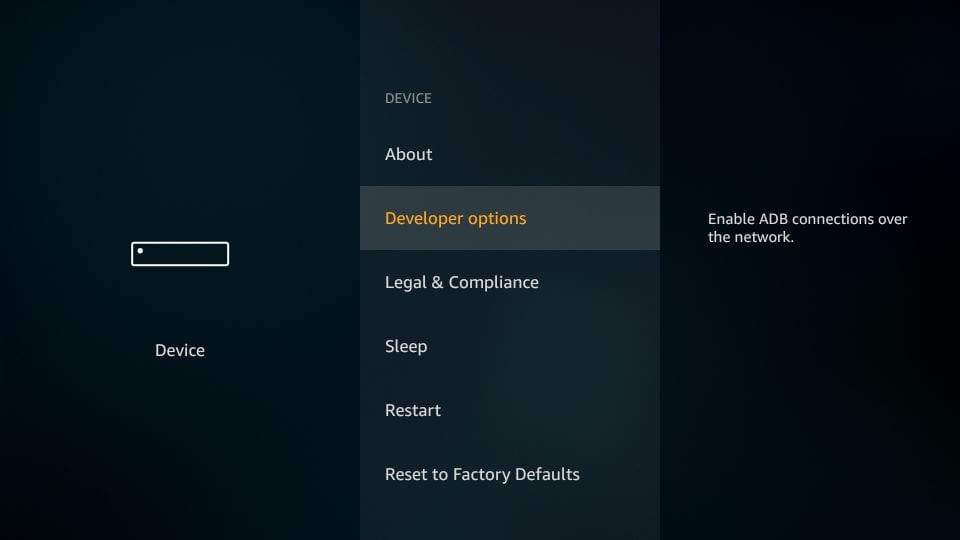
Open Developer Options
Select “My Fire TV”, then choose “Developer Options”.
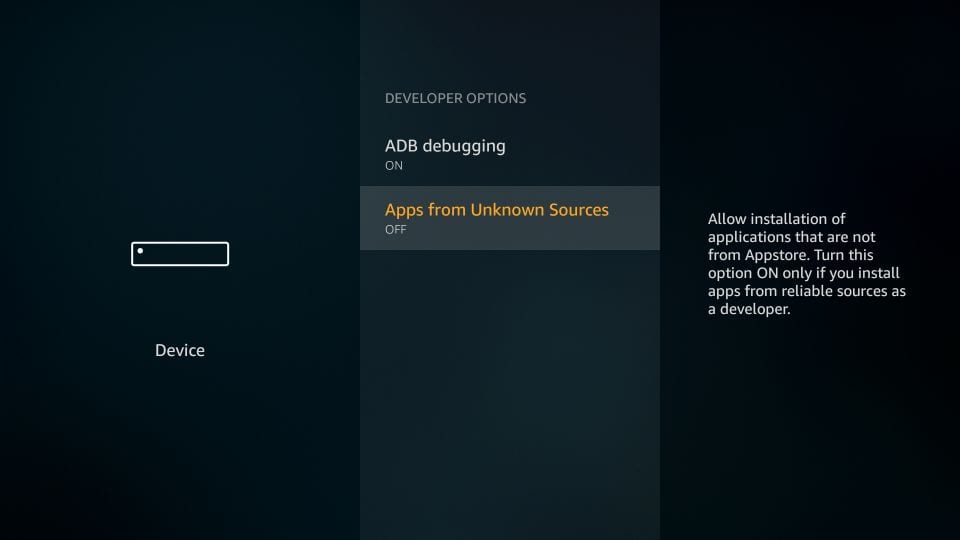
Enable Unknown Sources
Check if “Apps from Unknown Sources” is turned OFF. If it is OFF, click it once.
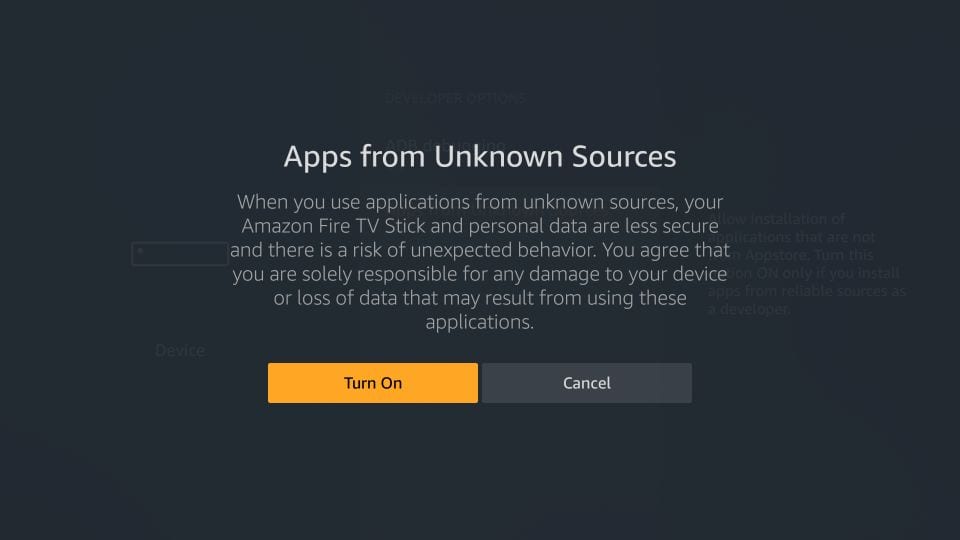
Click Turn On
When the warning message appears, click “Turn On” to allow Downloader to install the app.
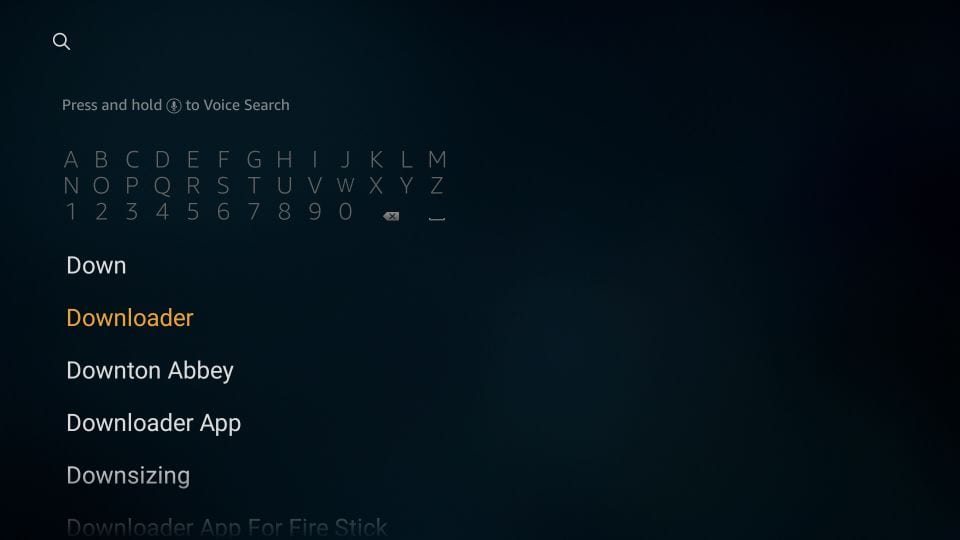
Search for Downloader
Go back to the Fire TV home screen, select Search, type “Downloader”, then install the Downloader app.
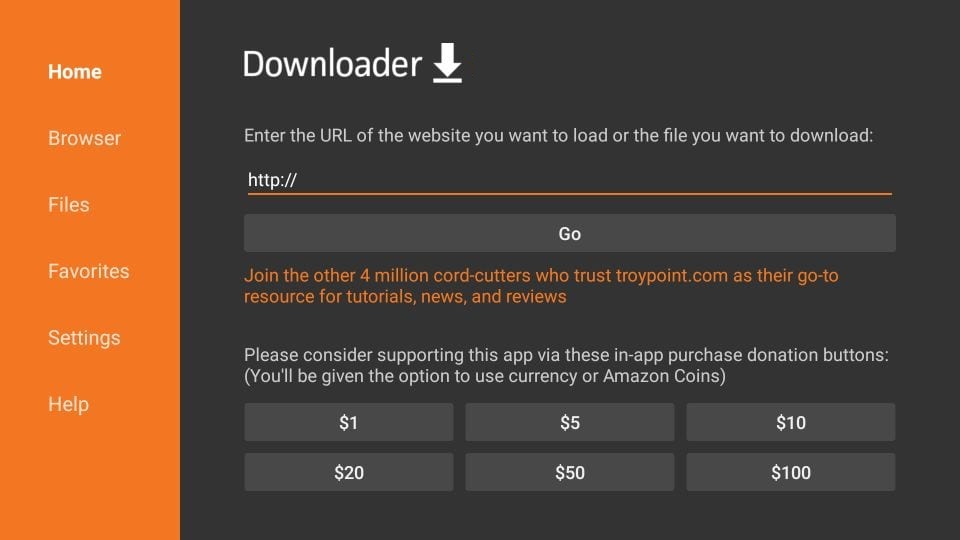
Open Downloader
Open the Downloader app. On the Home screen, click the URL box where it says “http://”.
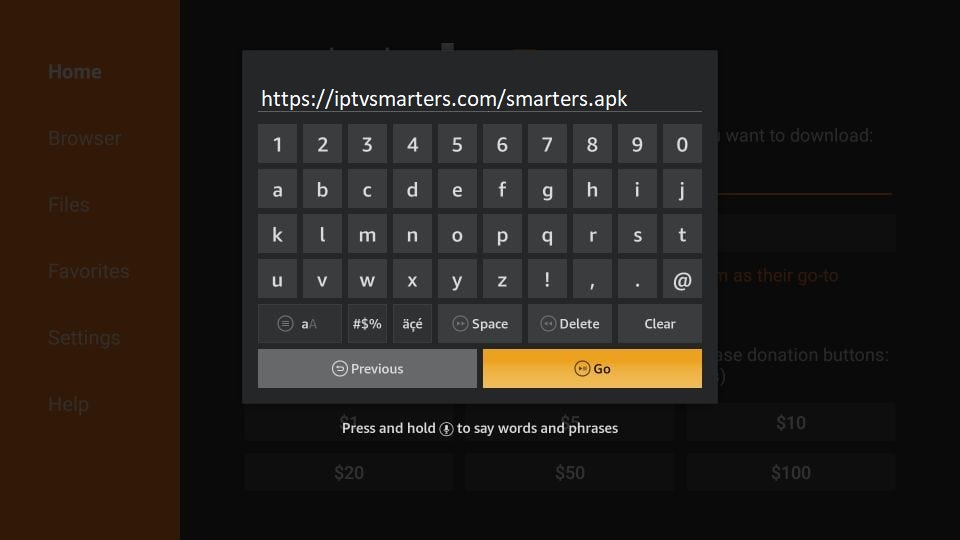
Enter the App Link
Type this link: https://iptvsmarters.com/smarters.apk then click “Go”.
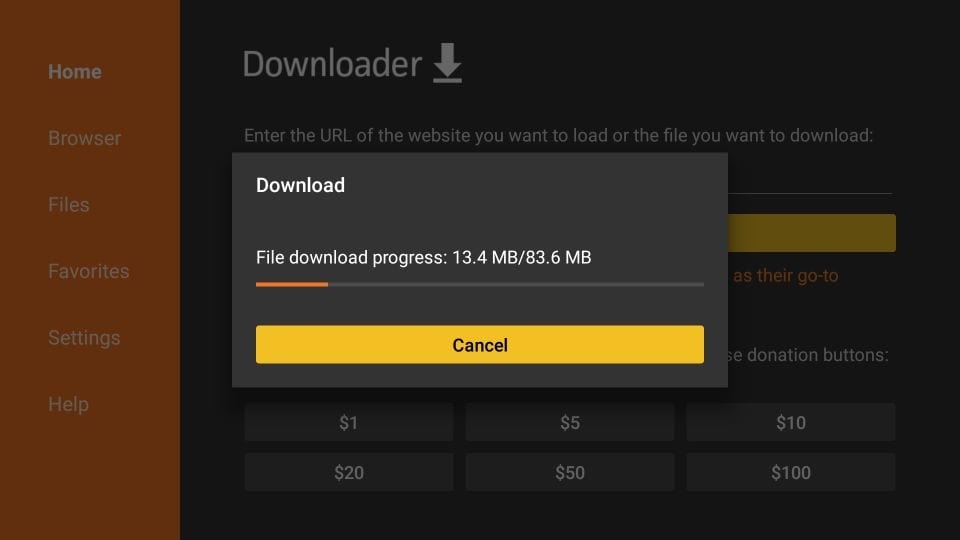
Wait for Download
Wait one or two minutes while the IPTV Smarters Pro file downloads on your Fire TV Stick.
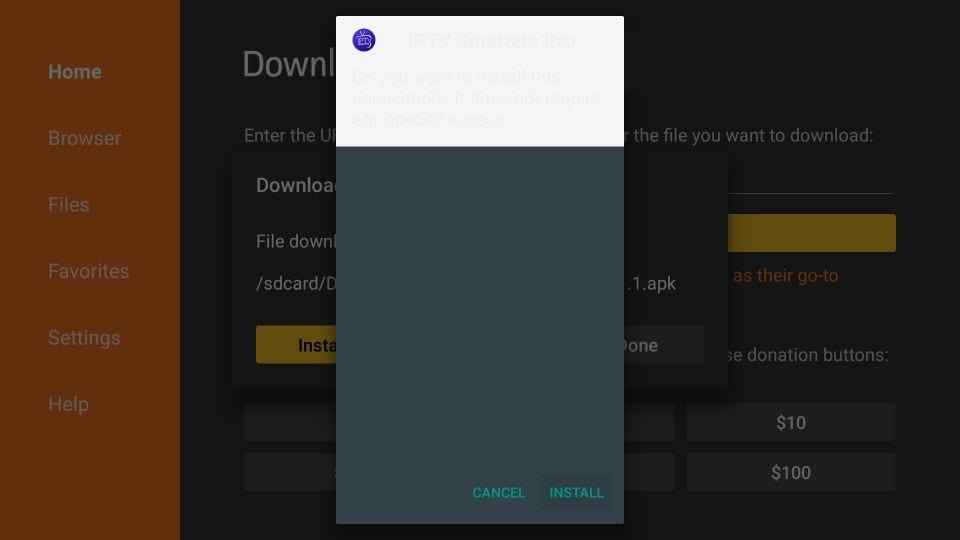
Click Install
When the installation screen appears, click “Install”.
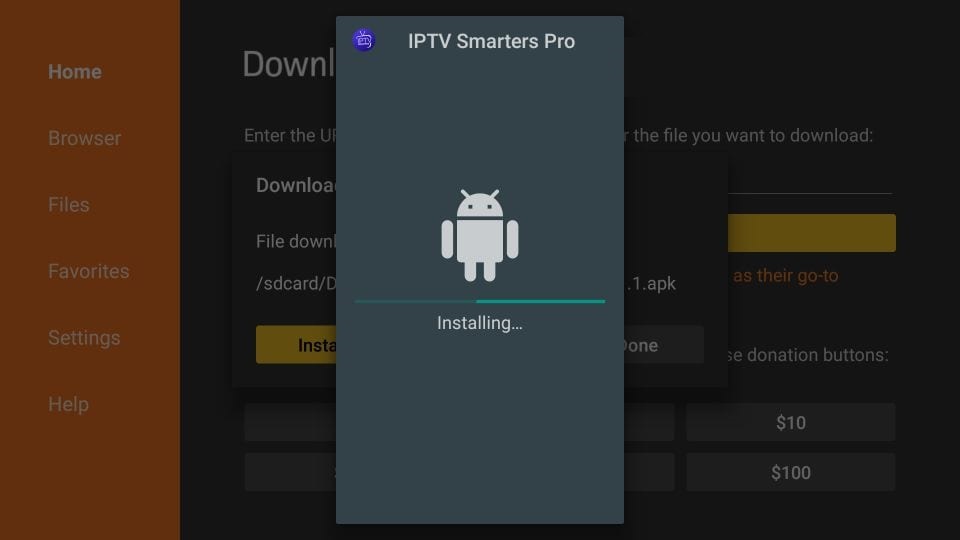
Wait for Installation
Wait until the app finishes installing on your Fire TV Stick.
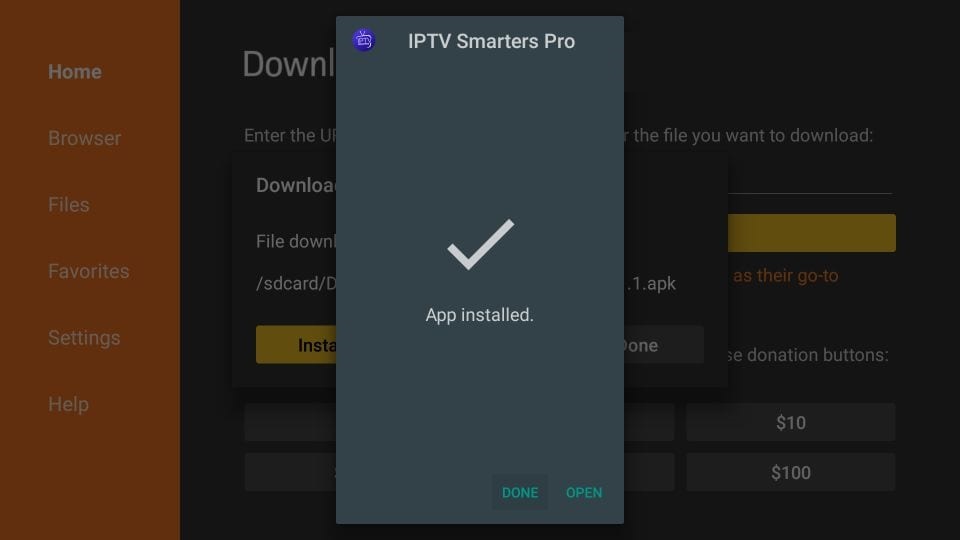
App Installed
When installation is complete, click “Open” to start the app, or click “Done” first to delete the APK file.
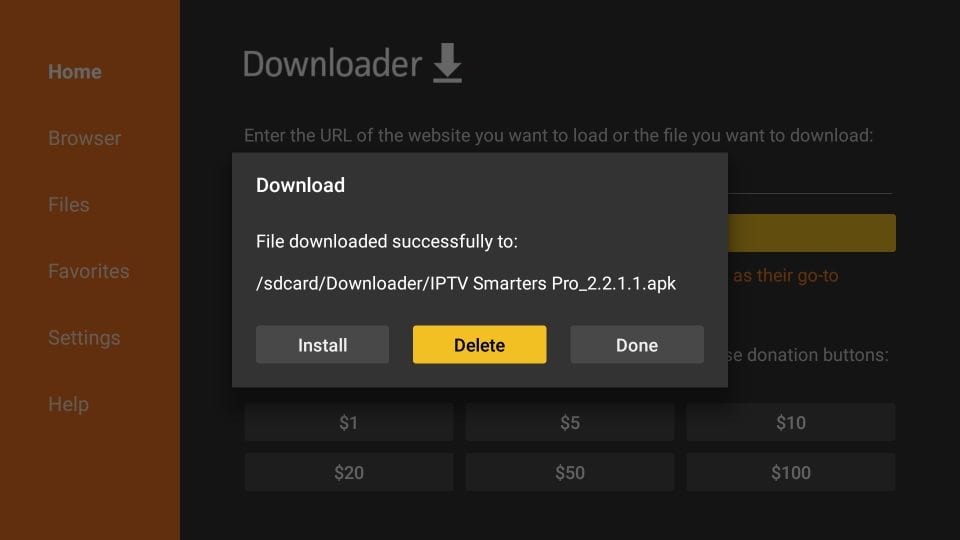
Delete APK File
If you clicked “Done”, return to Downloader and click “Delete” to remove the installer file.
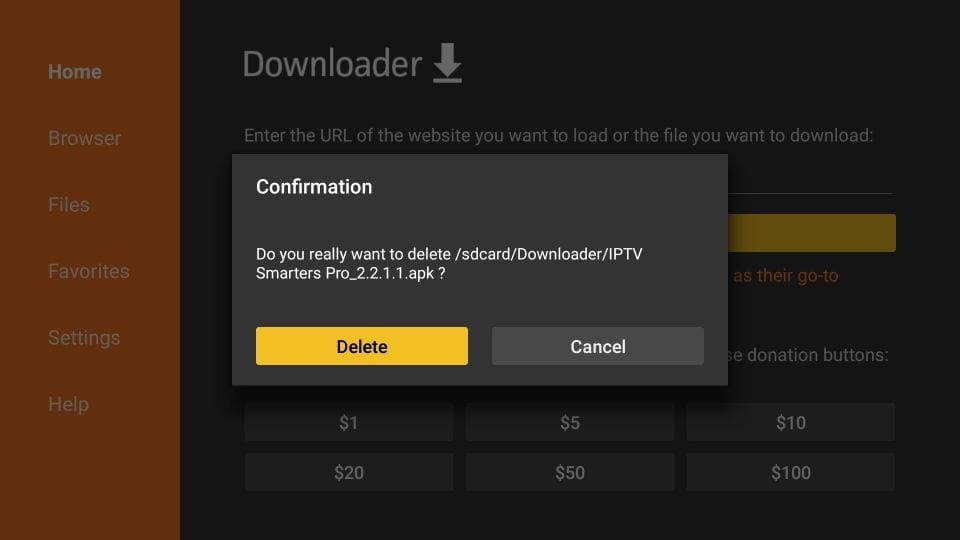
Confirm Delete
Click “Delete” again to confirm. This only removes the installer file, not the installed app.
Choose Xtream Codes API
Open IPTV Smarters Pro, accept the Terms of Use, click “Add User”, then choose “Login with Xtream Codes API”.
Enter Login Details
Enter any profile name, your username, password, and server URL sent by Pipeo Prime, then click “Add User”.
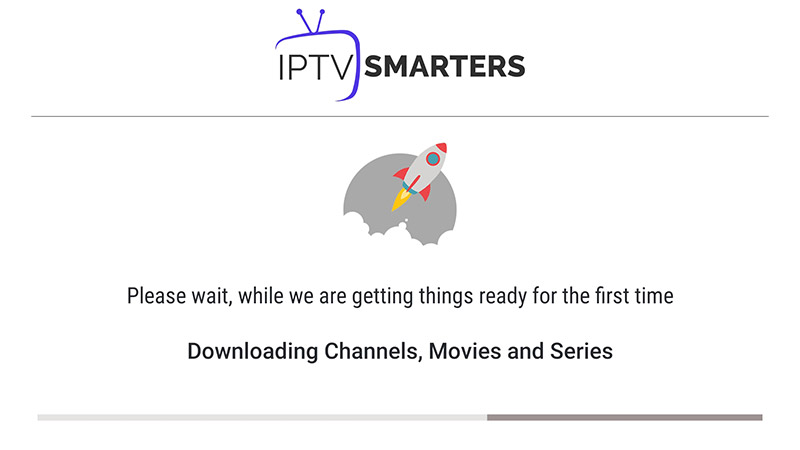
Wait for Loading
Wait while the app loads your channels, movies, series, and TV guide.
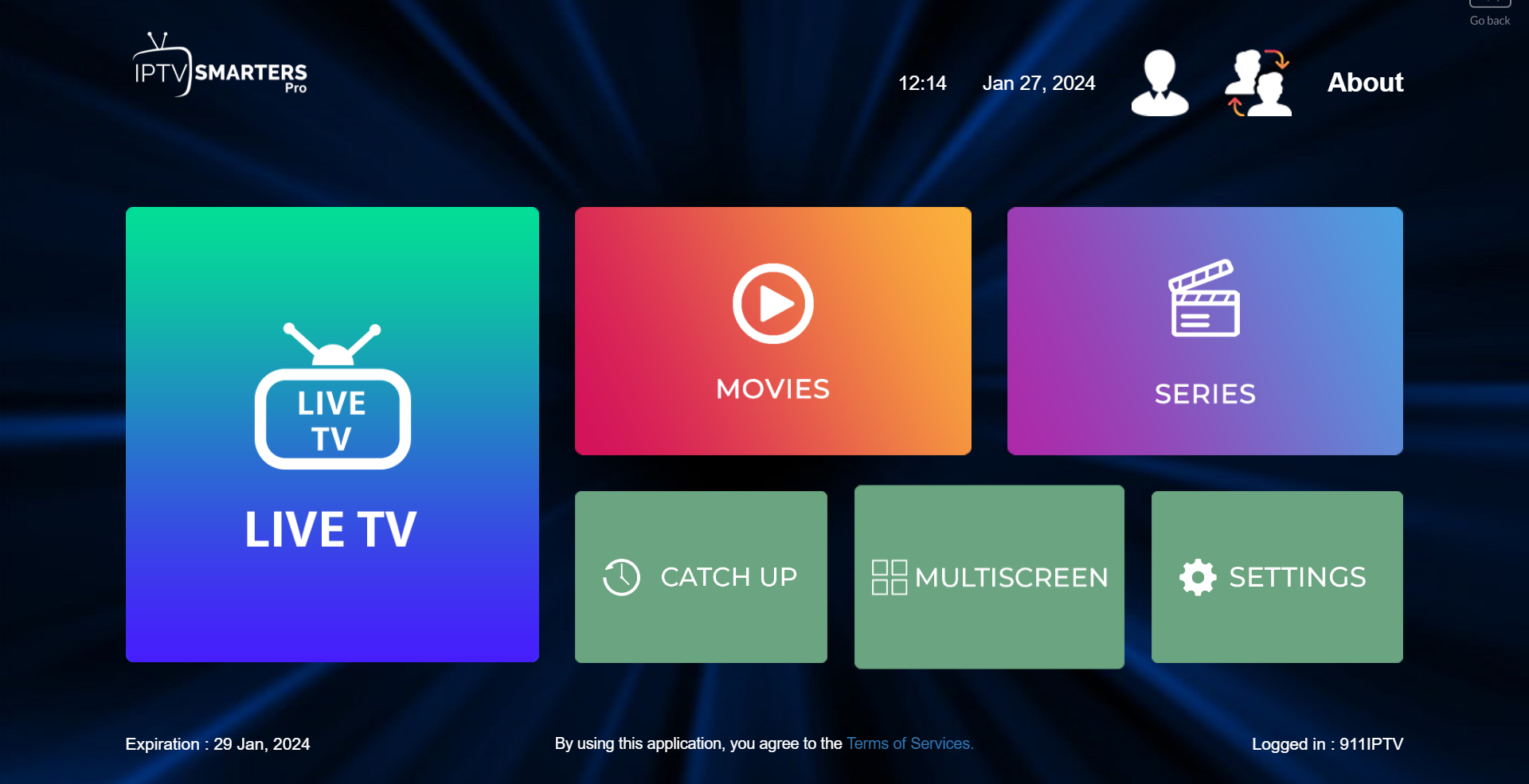
Open Live TV
Click the “Live TV” icon to open your live channel list.
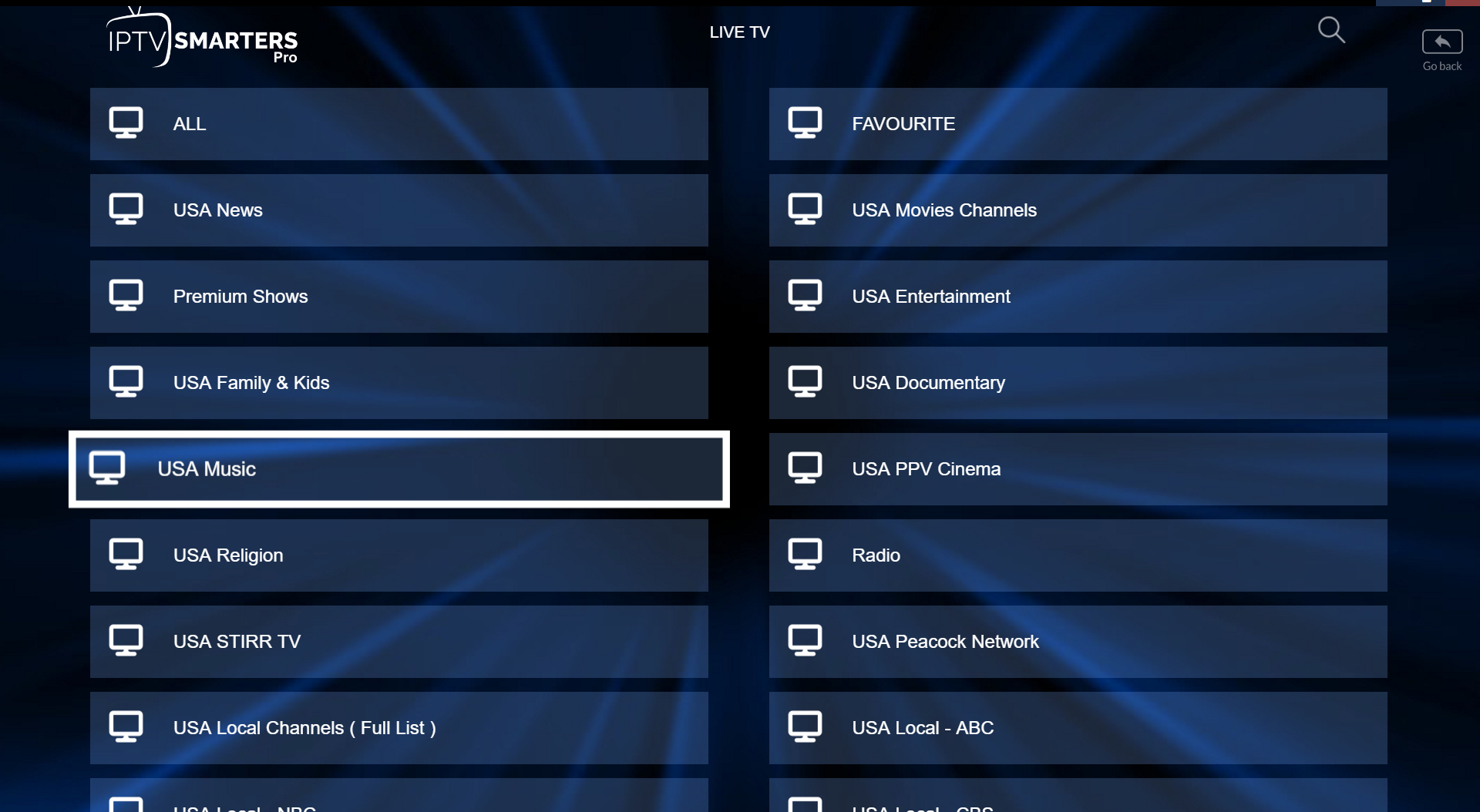
Select a Channel Group
Choose the channel group or category you want to watch.
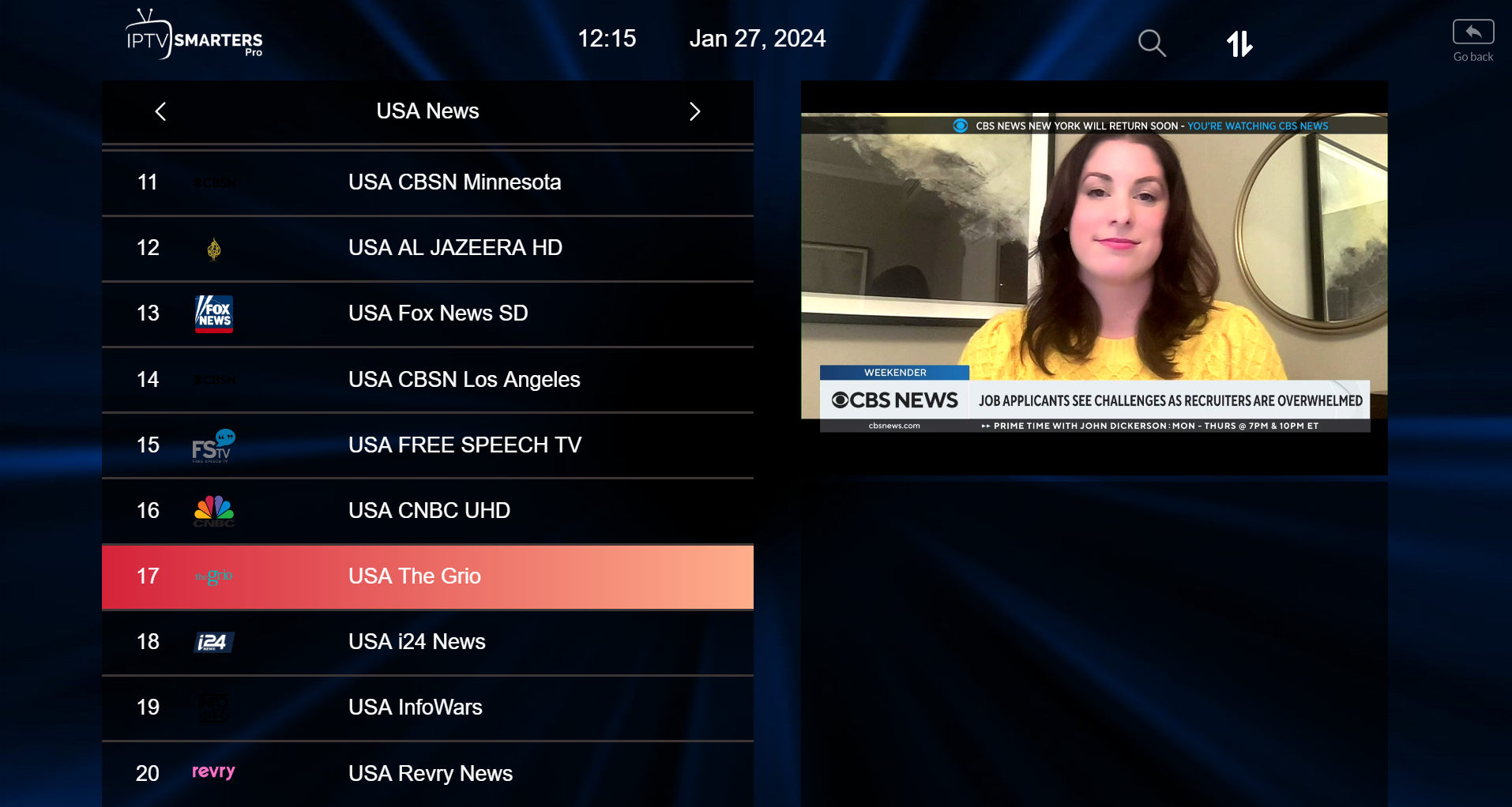
Start Watching
Click the channel name to start watching. You can double click the screen to switch to full screen.
Install on Samsung or LG Smart TV
Install IPTV Smarters Pro or another compatible IPTV player from your TV app store, then log in with your details.
Choose Xtream Codes API
Open the app and choose “Login with Xtream Codes API”.
Enter login details
Enter your username, password, and server URL, then click “Add User”.
Install on MAG Box / STB Emulator
MAG setup is usually done through the portal settings. You may need to send your MAC address to support before activation.
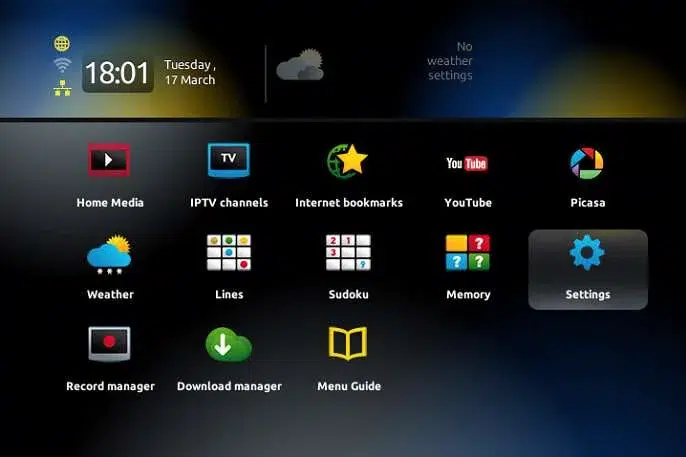
Open Settings
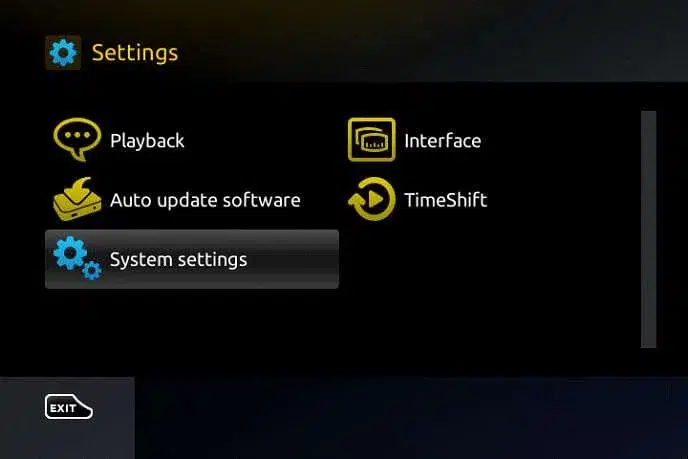
When the main portal screen appears, click “Settings” or press the setup button on your remote.
Open System Settings
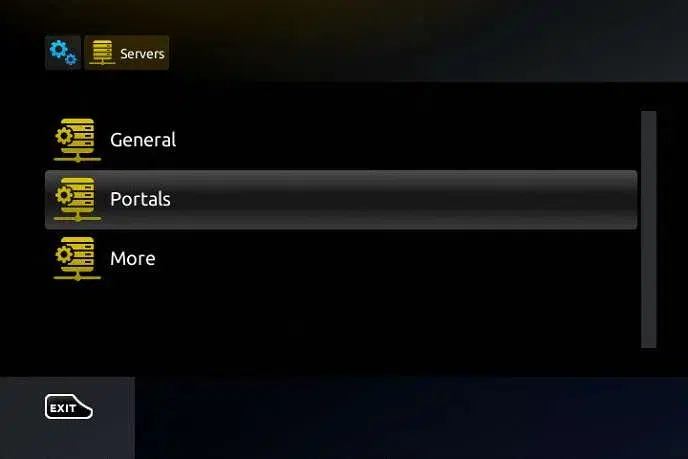
Click “System settings”, then choose “Servers”.
Select Portals
Inside the Servers menu, select “Portals”.
Enter Portal URL
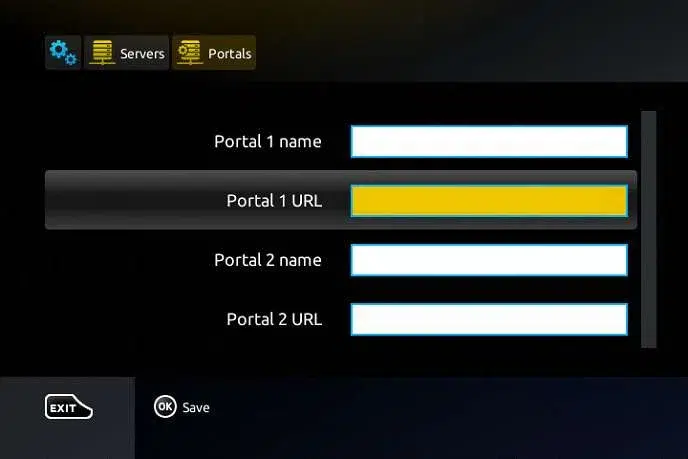
Enter a portal name such as Pipeo Prime, then enter the portal URL provided after purchase.
Install on BuzzTV Box
BuzzTV boxes usually include a built-in IPTV portal system. You will need your MAC address and portal URL.
Go to Settings
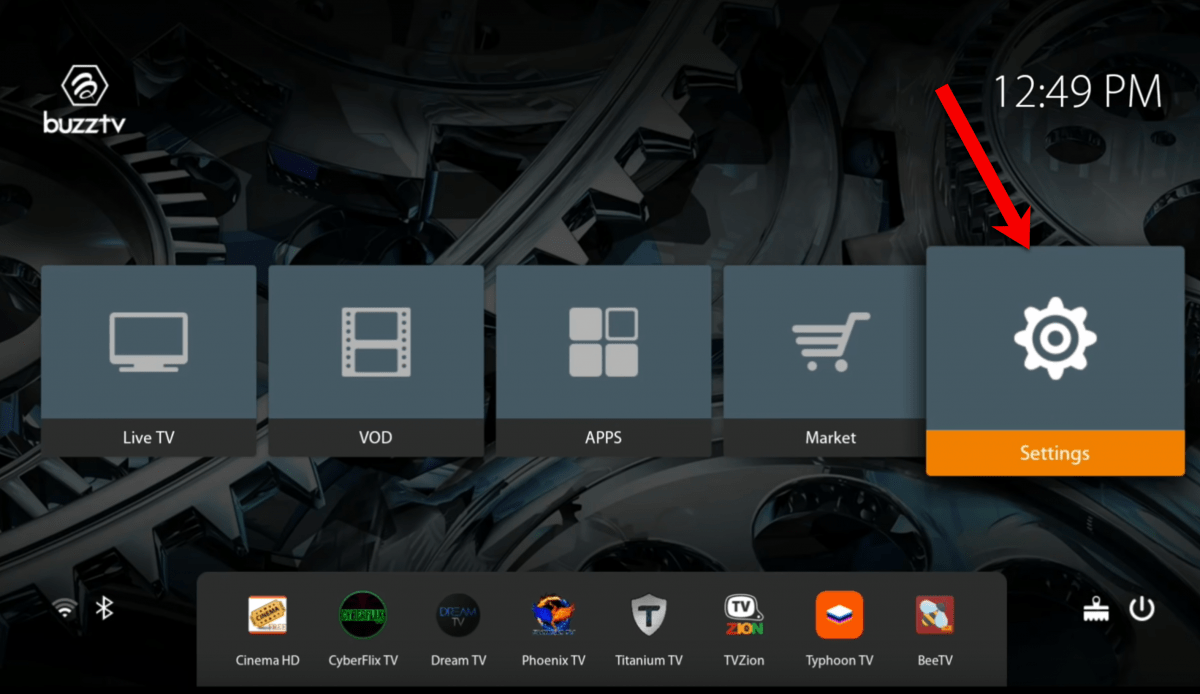
From the BuzzTV home screen, go to “Settings”.
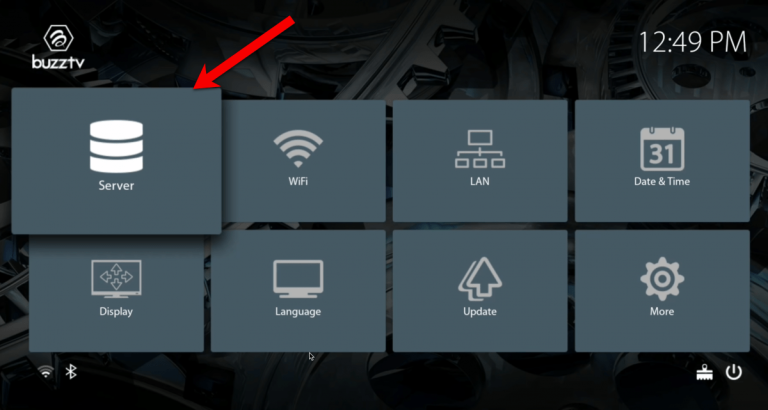
Select Server
Inside Settings, choose the “Server” option.
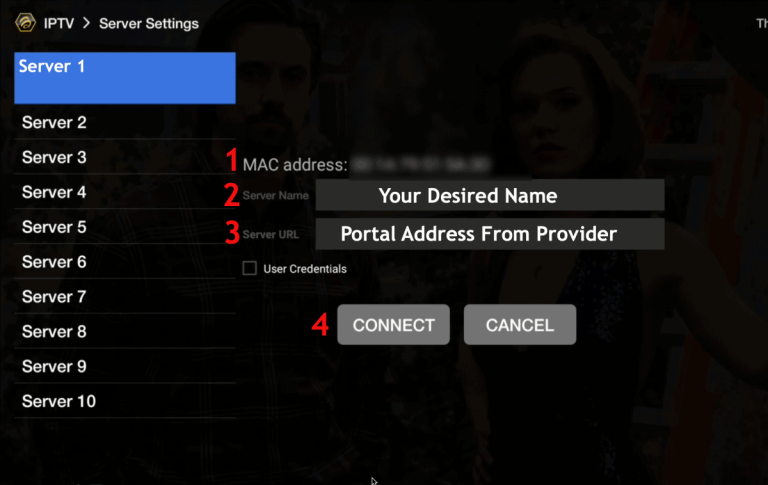
Enter Portal Details
Send us the MAC address shown on screen, then enter the portal URL provided by support and click “Connect”.
Install on Roku TV
For Roku, use IBO Player Pro from the Roku Channel Store, then activate it through the IBO Player Pro website.
For Apple TV and iPhone, install the app from this URL:
https://apps.apple.com/fr/app/ibo-pro-player/id6449647925
Then follow the steps below.

Install IBO Player Pro
Go to the Roku Channel Store, search “IBO Player Pro”, then add the channel.
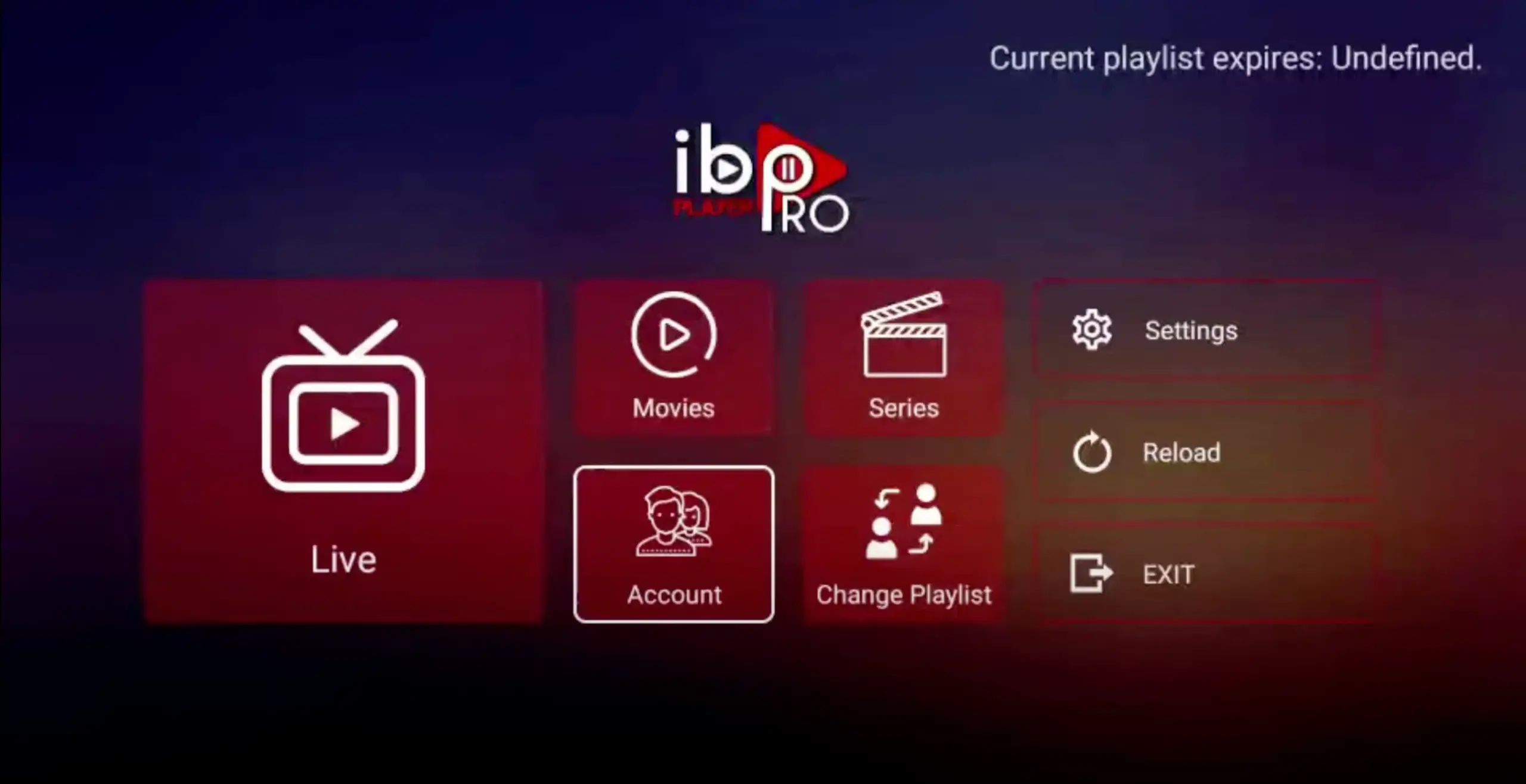
Open Account
Open the app and click “Account” to see your MAC address and Device Key.
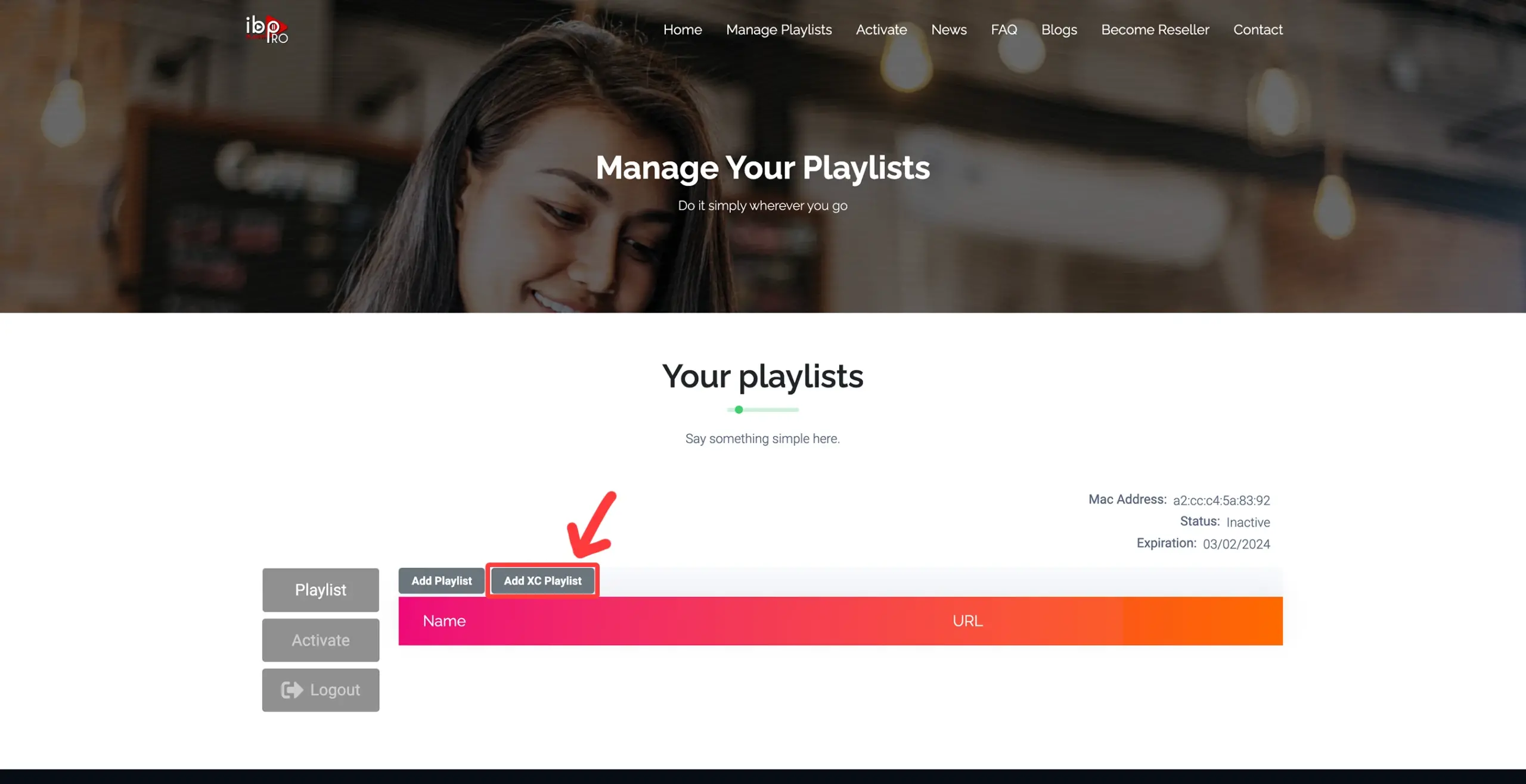
Add XC Playlist
Visit iboproapp.com, click “Manage Playlists”, then add your XC playlist details.
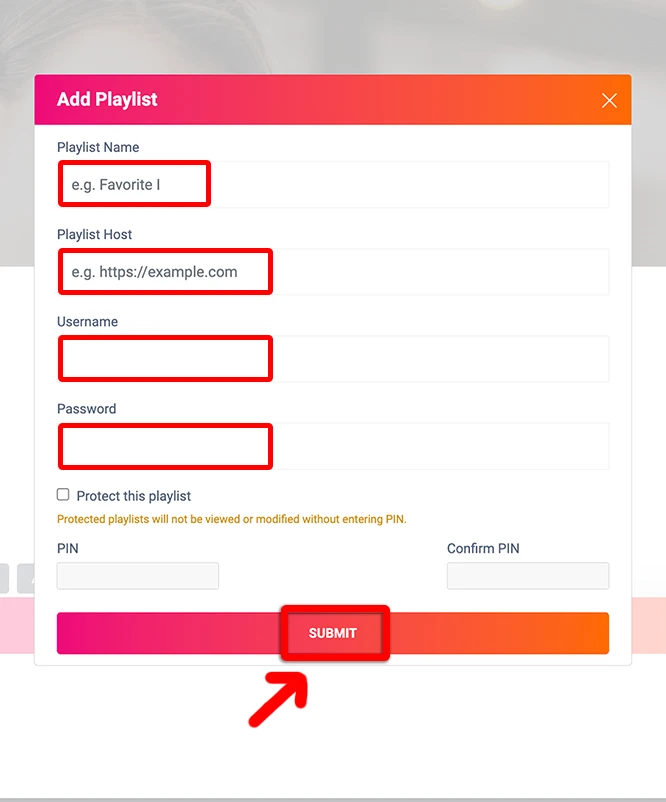
Enter your details
Enter playlist name, server URL, username, and password, then submit and restart the app.
Install on Formuler Box
Formuler boxes work best with MYTV Online / MYTV Online 2 / MYTV Online 3, depending on your model.
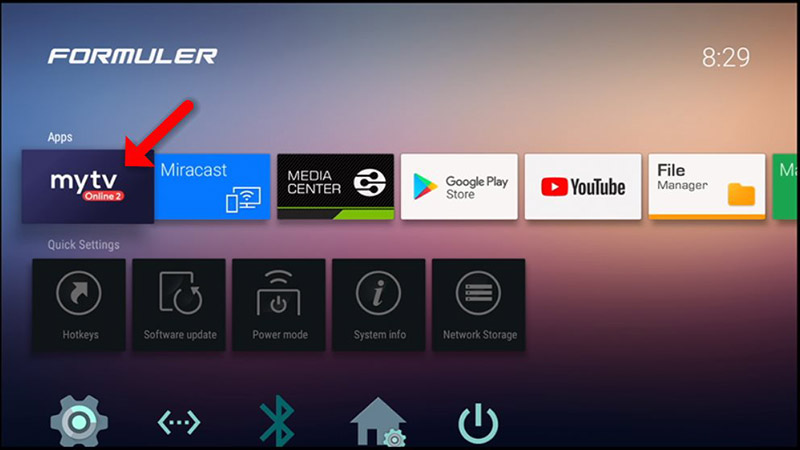
Open MYTV Online
Open MYTV Online, MYTV Online 2, or MYTV Online 3 on your Formuler device.
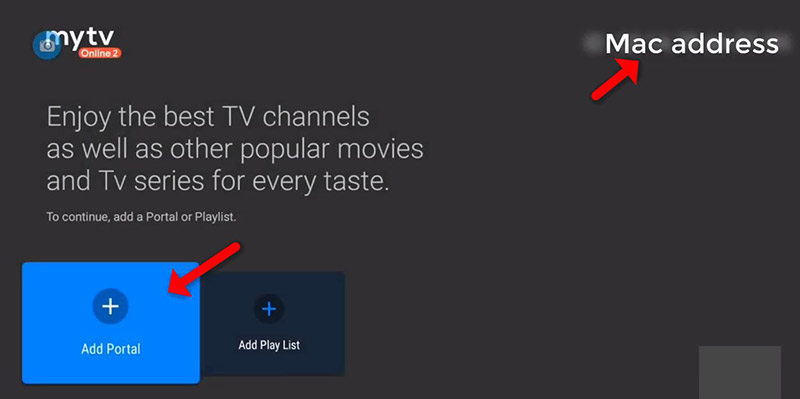
Add Portal
Select “Add Portal” or “Add Server”. Your MAC ID may appear on this screen.
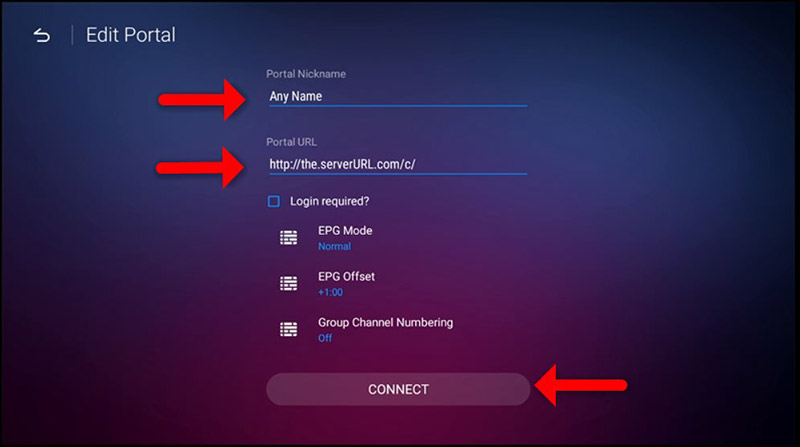
Enter Portal URL
Enter Pipeo Prime as the portal name and add the portal URL provided by support, then connect.
Install on Android
Install IPTV Smarters Pro or Smarters Player Lite, then use the login details we send after purchase.
Choose Xtream Codes API
Open the app, click “Add User”, then choose “Login with Xtream Codes API”.
Enter login details
Enter your username, password, and server URL, then click “Add User”.
